Download Ride Connect+ for Access


Download Ride Connect for Raider PRO
Ride Connect
Phone Call Logs Access
To display number of missed calls over motorcycle’s instrument cluster.
Device's Location Access / Turn-by-turn Navigation
For real-time navigation (TBT) over motorcycle’s instrument cluster.
Photos, Media and Files Access
To set, view and edit the rider’s profile picture.
Calendar Access
To display notification over vehicle’s instrument cluster.
Manage Phone Calls with Auto Reply and View SMS Notification
To auto disconnect the incoming call while riding, and to send Auto Reply SMS to caller while riding. Display notification over motorcycle’s instrument cluster.
Bluetooth Access
To allow exchange of data between instrument cluster and application to display map direction.
Contact Access
To access saved contacts to display caller name/number over motorcycle’s instrument cluster.
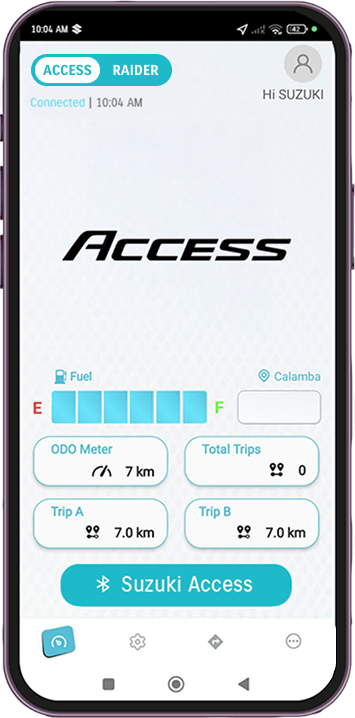
Ride Connect Functions
Enhance your riding experience with Suzuki Ride Connect. Get essential information at your fingertips for your convenience and safety. Ride with confidence and control with Suzuki.
Call, SMS, Alerts, Navigation (arrows).
- Monochrome is displayed in the same area.
- TFT changes its content depending on the display status.
Information of Call, SMS, Alerts, Navigation.
- Monochrome is displayed in the same area.
- TFT changes its content depending on the display status.
Information of Call, SMS, Alerts, Navigation.
- If the smartphone is connected to a network, it can display the current
location, weather and temperature information.
Flashing when Call/SMS or Alerts are received.
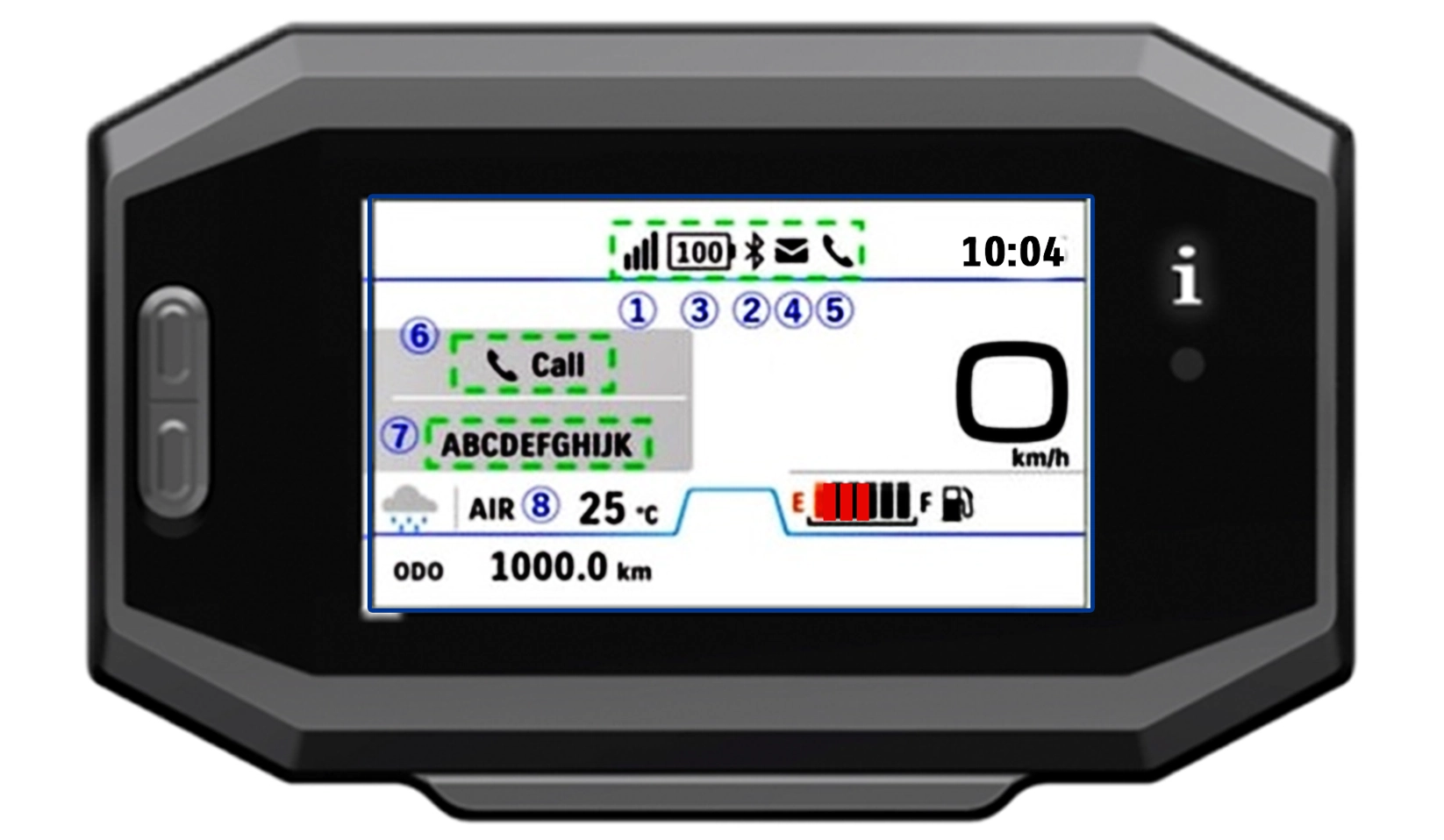
TFT Display
For Access Ride Connect Edition
Call, SMS, Alerts, Navigation (arrows).
- Monochrome is displayed in the same area.
- TFT changes its content depending on the display status.
Information of Call, SMS, Alerts, Navigation.
- Monochrome is displayed in the same area.
- TFT changes its content depending on the display status.
Flashing when Call/SMS or Alerts are received.
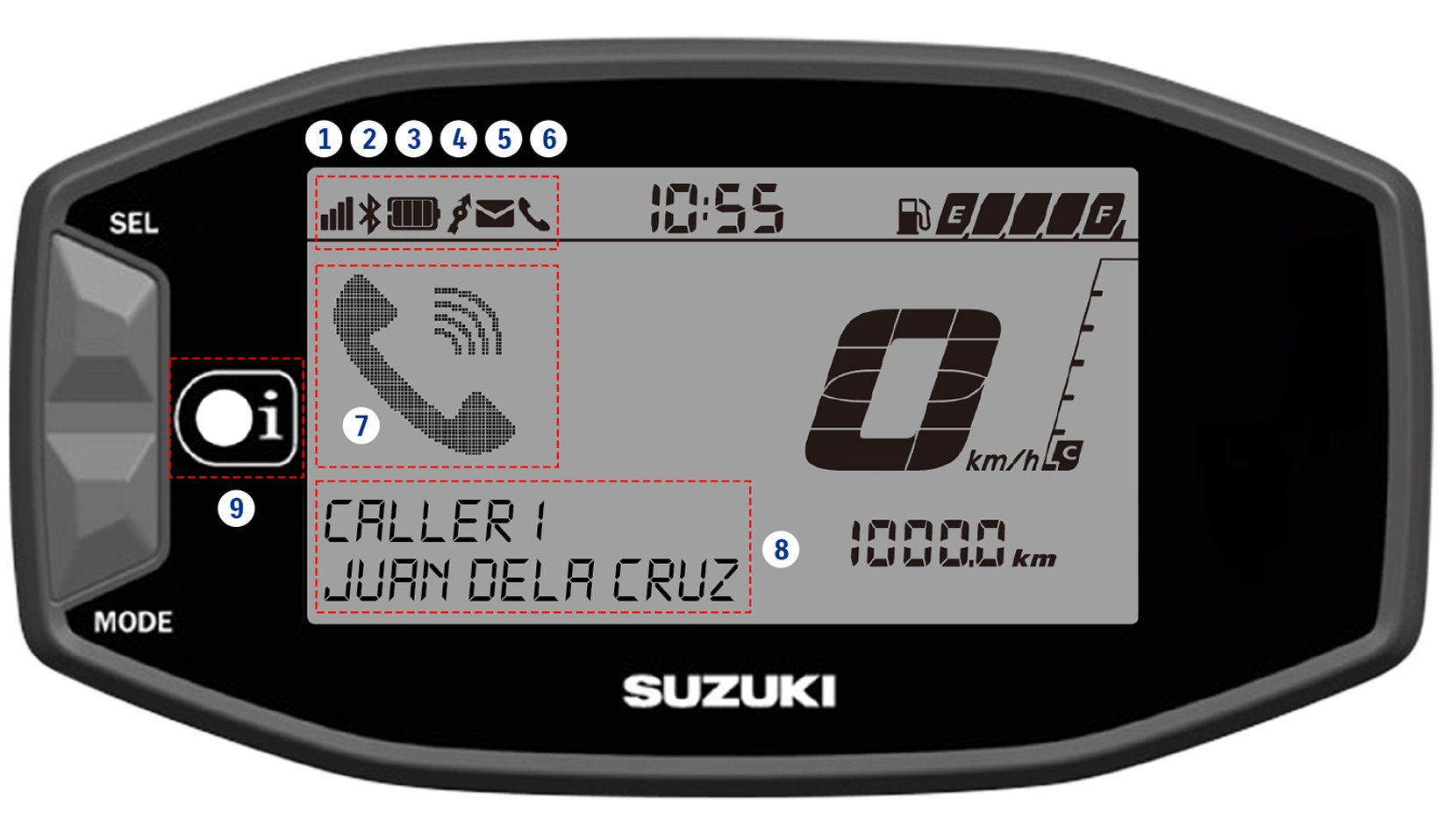
Monochrome Display
For Raider PRO
Radio Wave
Android Only
BT Connection
Phone Battery
Navigation Active Indicator
SMS/Message
Call
Mark
Call, SMS, Alerts, Navigation (arrows).
- Monochrome is displayed in the same area.
- TFT changes its content depending on the display status.
Character Display
Information of Call, SMS, Alerts, Navigation.
- Monochrome is displayed in the same area.
- TFT changes its content depending on the display status.
Ambient Weather/Temperature
If the smartphone is connected to a network, it can display the current location, weather and temperature information.
Call Indicator light
Flashing when Call/SMS or Alerts are received.
Ride Connect Functions
Enhance your riding experience with Suzuki Ride Connect. Get essential information at your fingertips for your convenience and safety. Ride with confidence and control with Suzuki.
Radio Wave
Android Only
BT Connection
Phone Battery
SMS/Message
Call
Mark
Call, SMS, Alerts, Navigation (arrows).
- Monochrome is displayed in the same area.
- TFT changes its content depending on the display status.
Character Display
Information of Call, SMS, Alerts, Navigation.
- Monochrome is displayed in the same area.
- TFT changes its content depending on the display status.
Ambient Weather/Temperature
If the smartphone is connected to a network, it can display the current location, weather and temperature information.
Call Indicator light
Flashing when Call/SMS or Alerts are received.
Radio Wave
Android Only
BT Connection
Phone Battery
Navigation Active Indicator
SMS/Message
Call
Mark
Call, SMS, Alerts, Navigation (arrows).
- Monochrome is displayed in the same area.
- TFT changes its content depending on the display status.
Character Display
Information of Call, SMS, Alerts, Navigation.
- Monochrome is displayed in the same area.
- TFT changes its content depending on the display status.
Call Indicator light
Flashing when Call/SMS or Alerts are received.
Step By Step Guide
Smart Way to Commute
STEP 1
Connect your vehicle
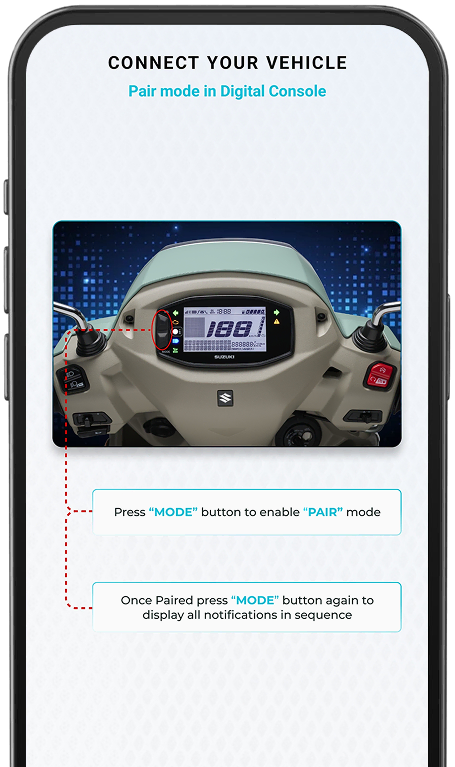
Pair mode in digital console
Pairing in the application
Sync your app to your ride
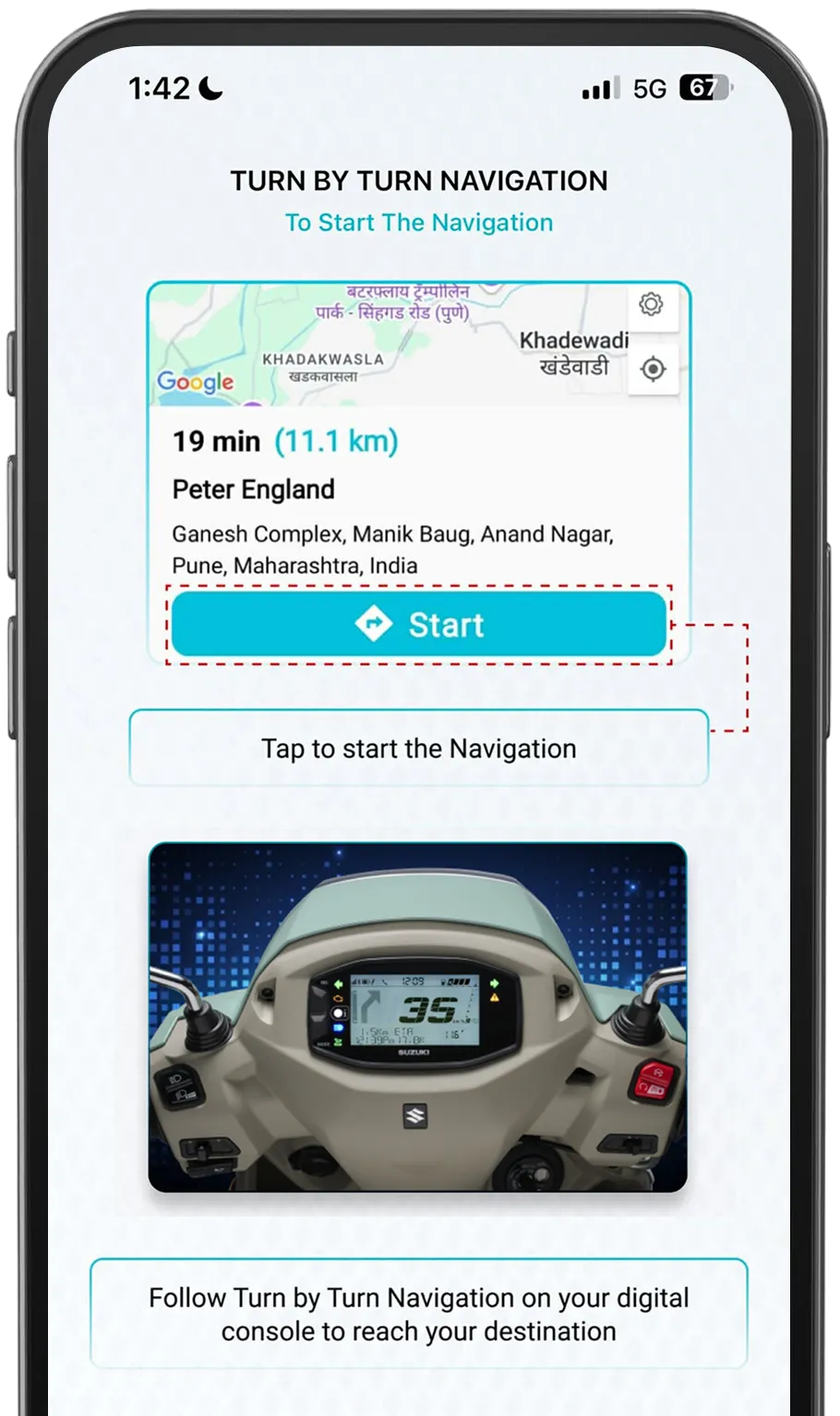
Turn by turn navigation
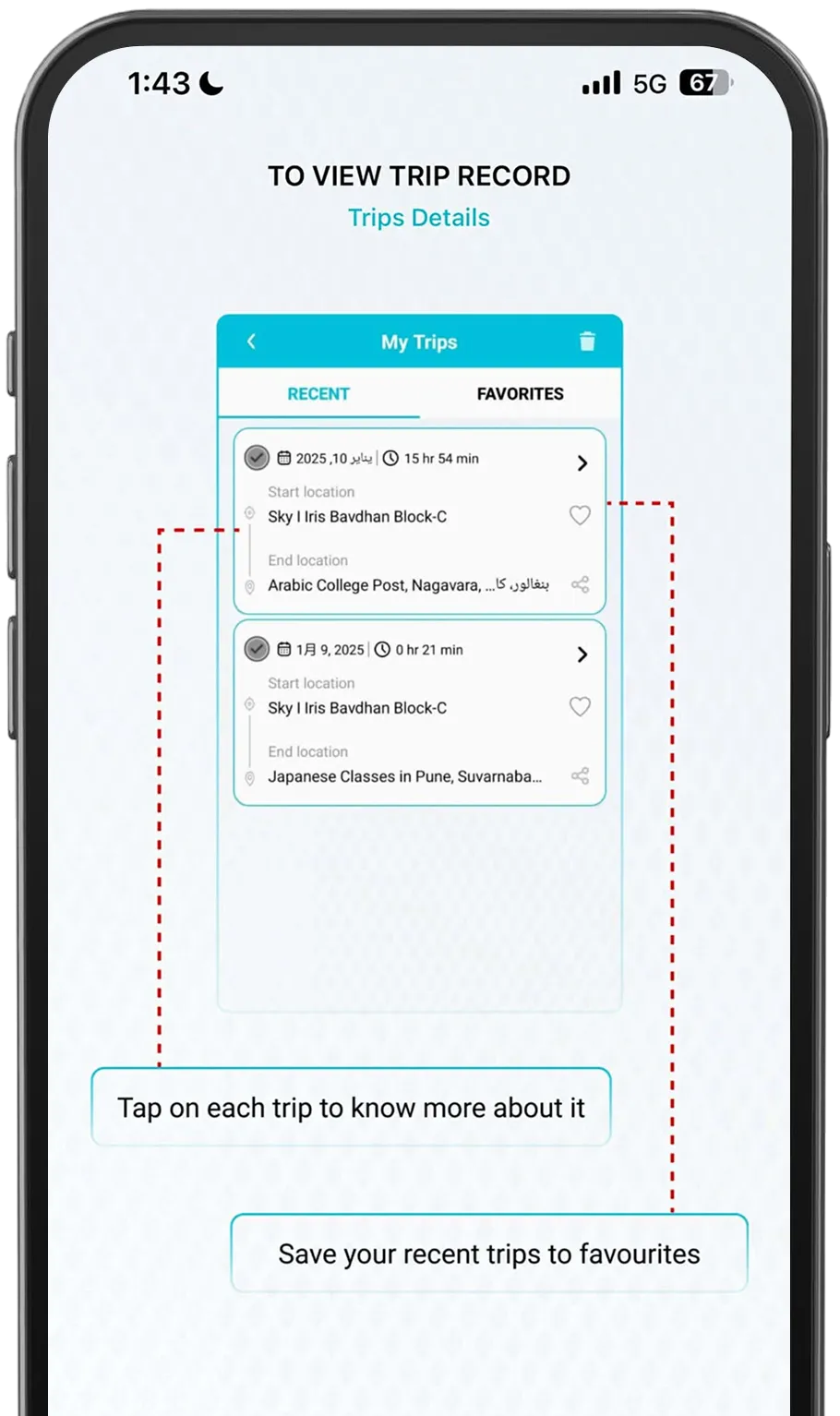
To view trip record
Trips details
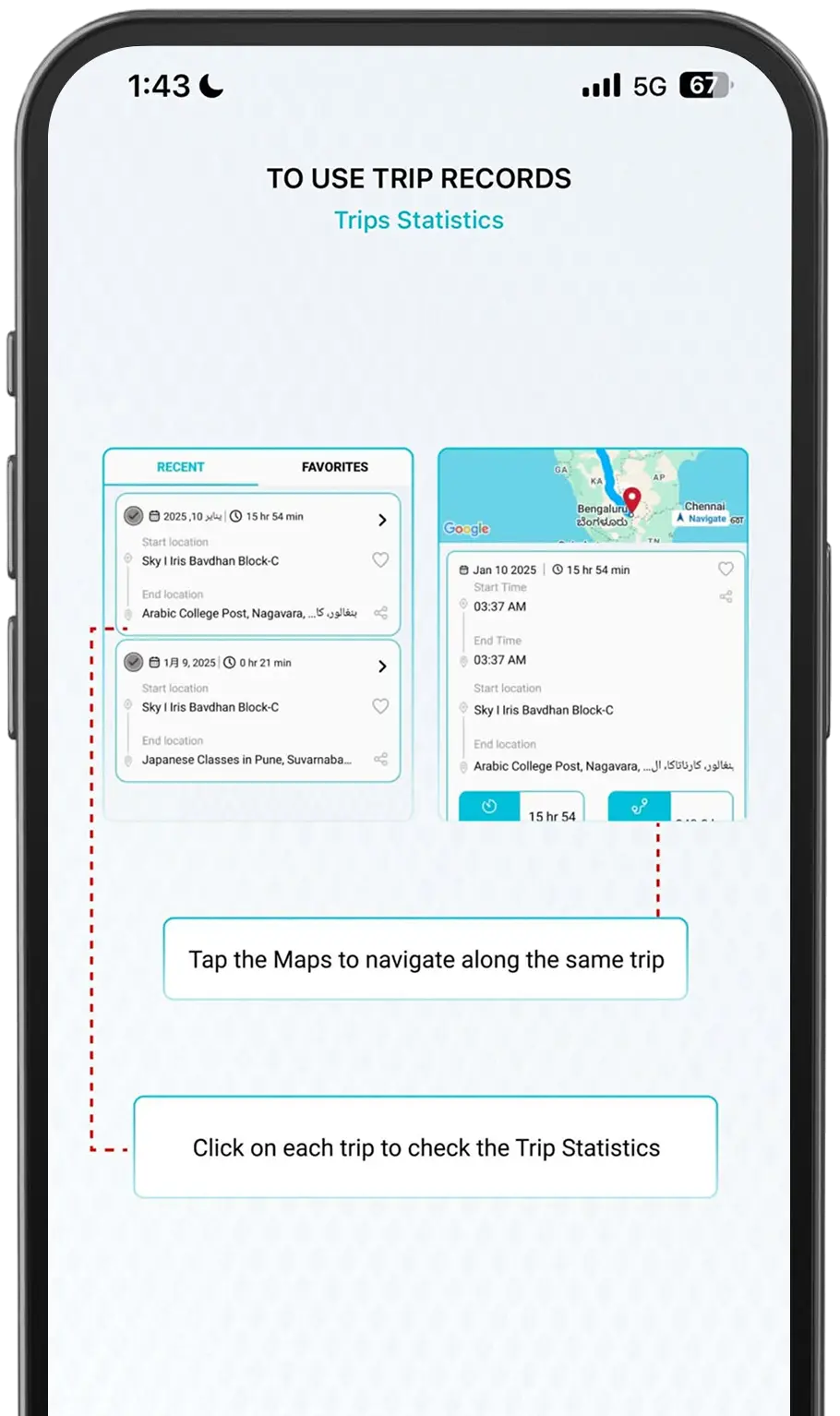
Trips statistics
To use trip record
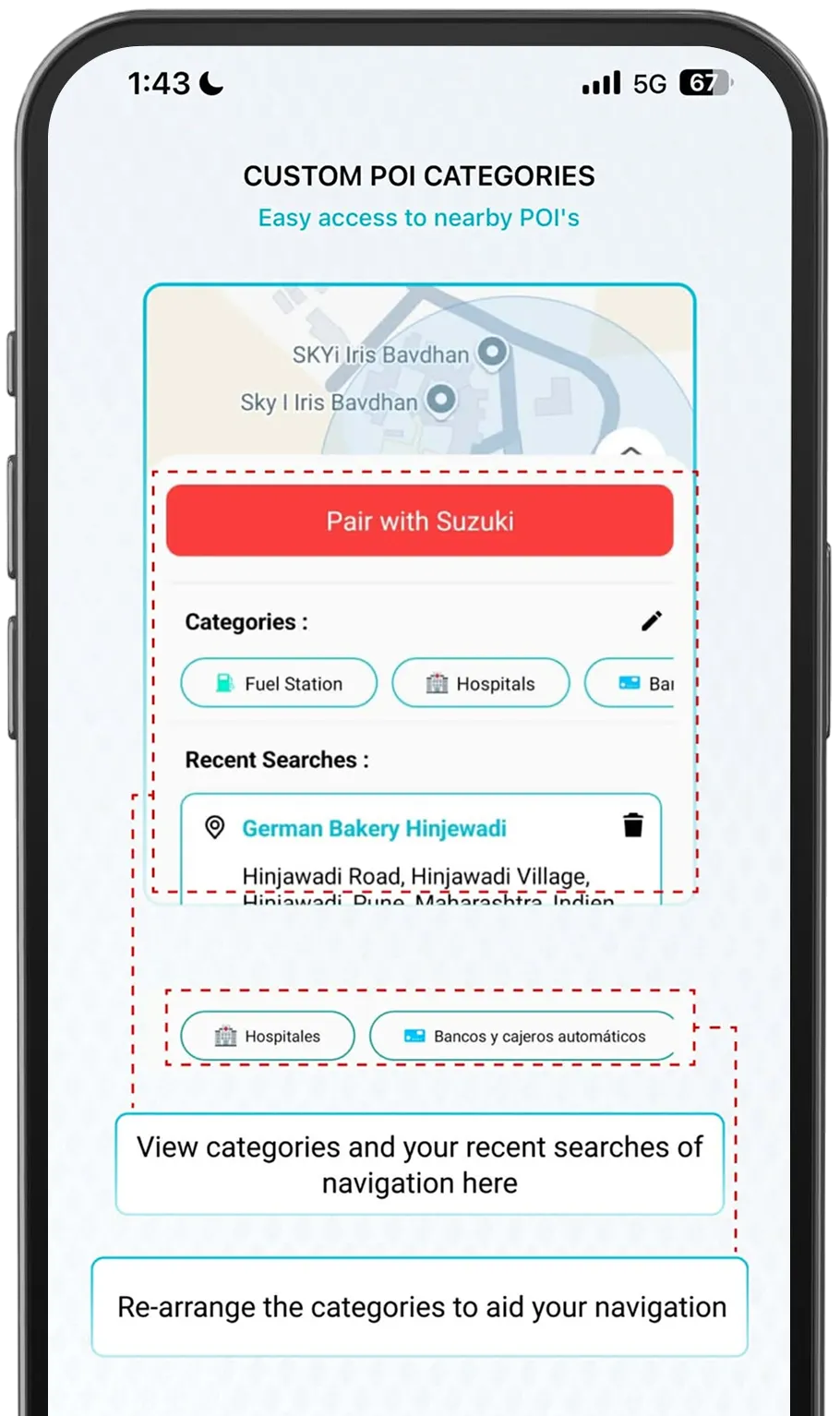
Custom POI categories
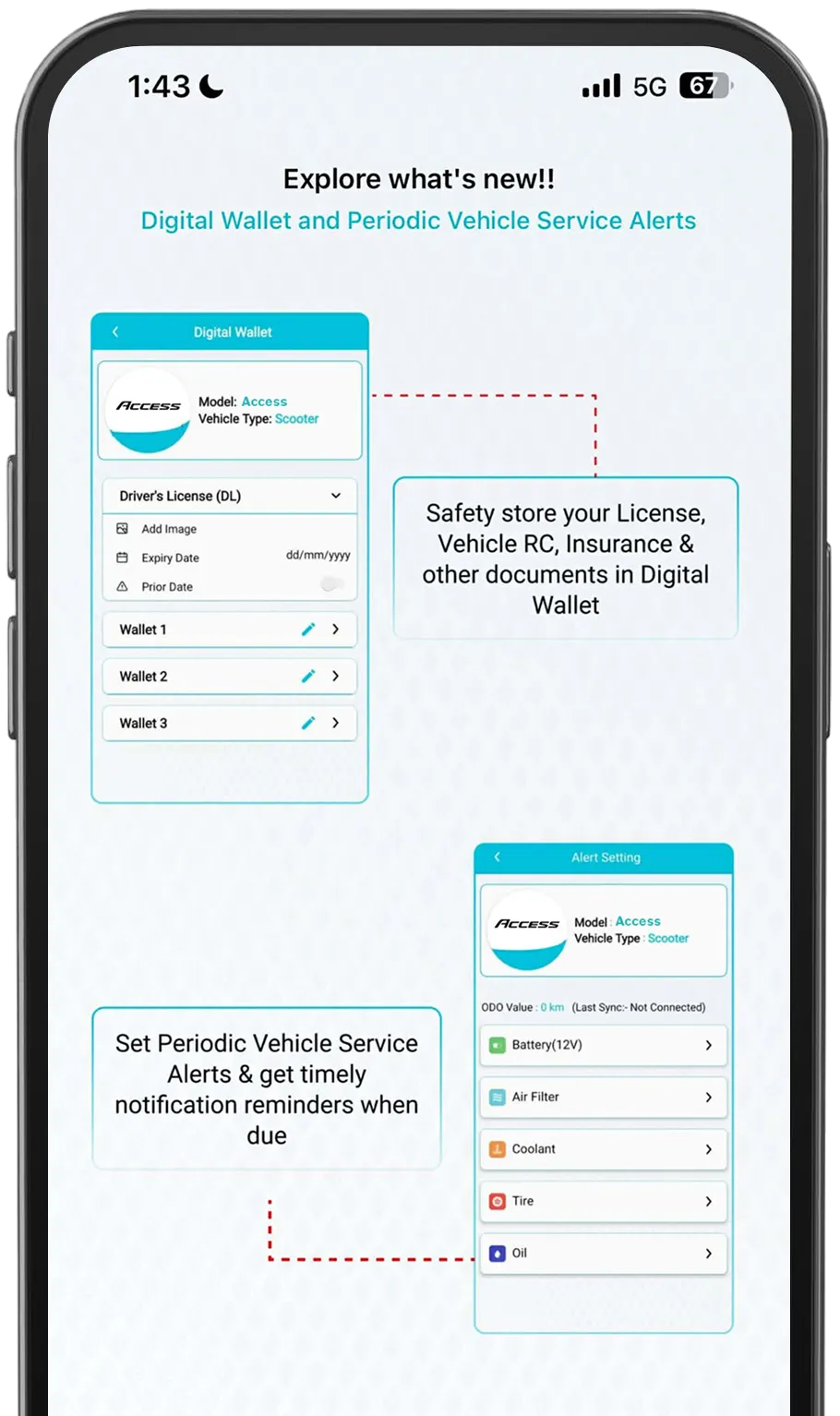
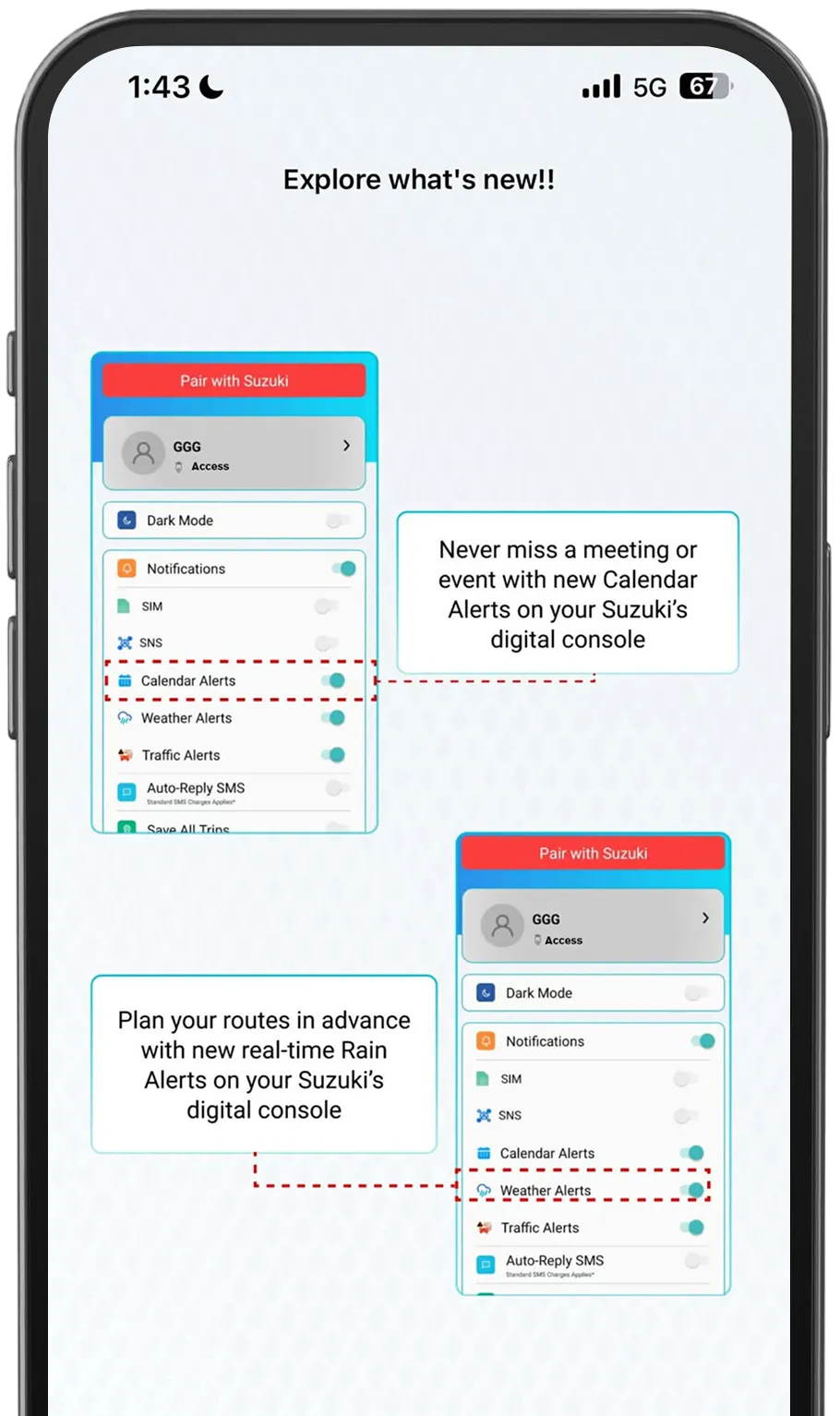
Explore what’s new
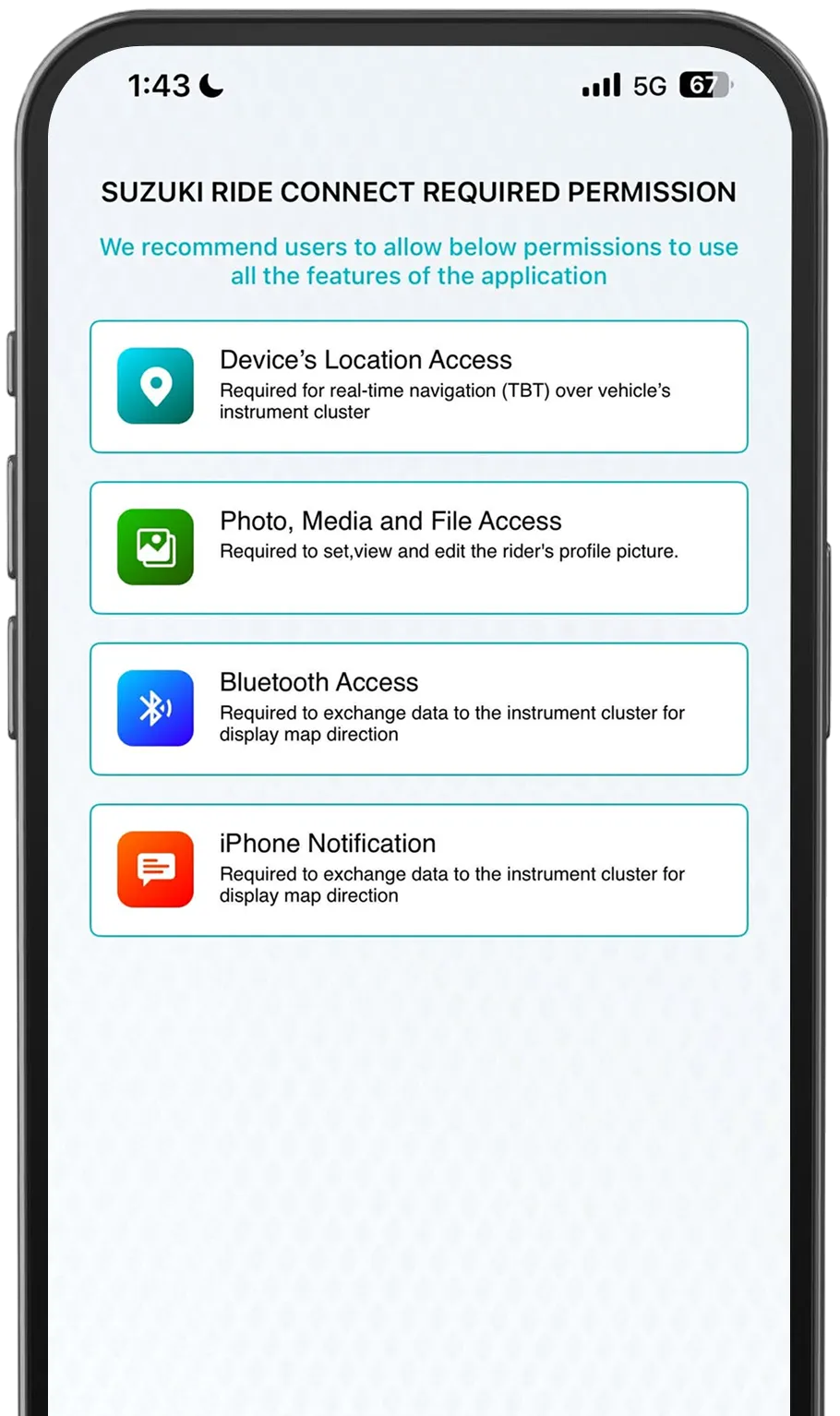
Suzuki ride connect required permission
Connect your vehicle
Turn by turn navigation
To view trip record
To use trip record
Custom poi categories
Explore what’s new
Suzuki ride connect required permission
Step By Step Guide
Smart Way to Commute
Connect your vehicle
Pair mode in digital console
Connect your vehicle
Connect your vehicle
Sync your app to your ride
Turn by turn navigation
Turn by turn navigation
To view trip records
To use trip records
Custom POI Categories
Explore what’s new!
Explore what’s new!
Suzuki ride connect required permission
Connect your vehicle
Pair mode in digital console
Connect your vehicle
Connect your vehicle
Turn by turn navigation
Turn by turn navigation
Turn by turn navigation
To start the navigation
To view trip records
Trips details
To use trip records
Trips statistics
Custom POI Categories
Easy access to nearby POI’s
Explore what’s new!
Digital wallet and periodic vehicle service alerts
Explore what’s new!
Suzuki ride connect required permission
We recommend users to allow below permissions to use all the features of the application
Video
Download the Ride Connect App
This app is only for models equipped with a monochrome cluster (Raider PRO) and TFT color cluster (Access Ride Connect Edition).
The minimum Operating System requirements for Suzuki Ride Connect App are:
Android Version: 10.0 and above IOS Version: 16.0 or later
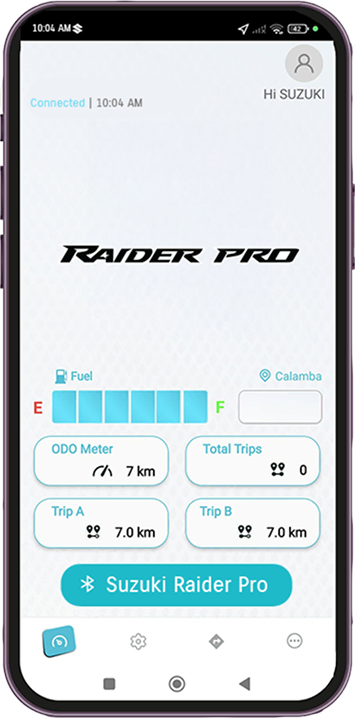
Ride Connect (Raider PRO)
Frequently Asked Questions
How can I pair the application with vehicle?
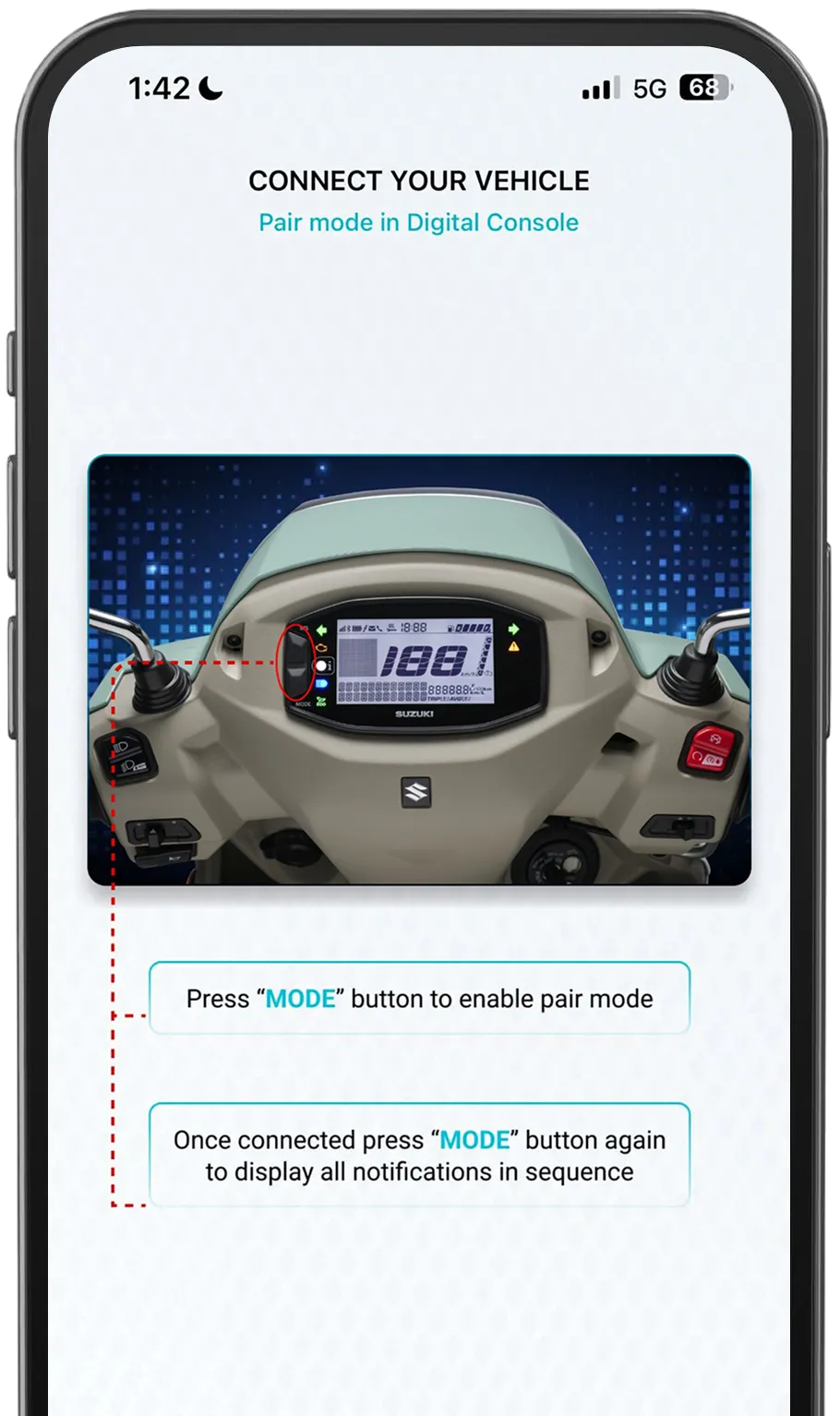
1. To pair with a Suzuki Vehicle, make sure that the vehicle is switched ON. Press the “MODE” button on the instrument cluster with a short press to enable Pairing Mode in the cluster.
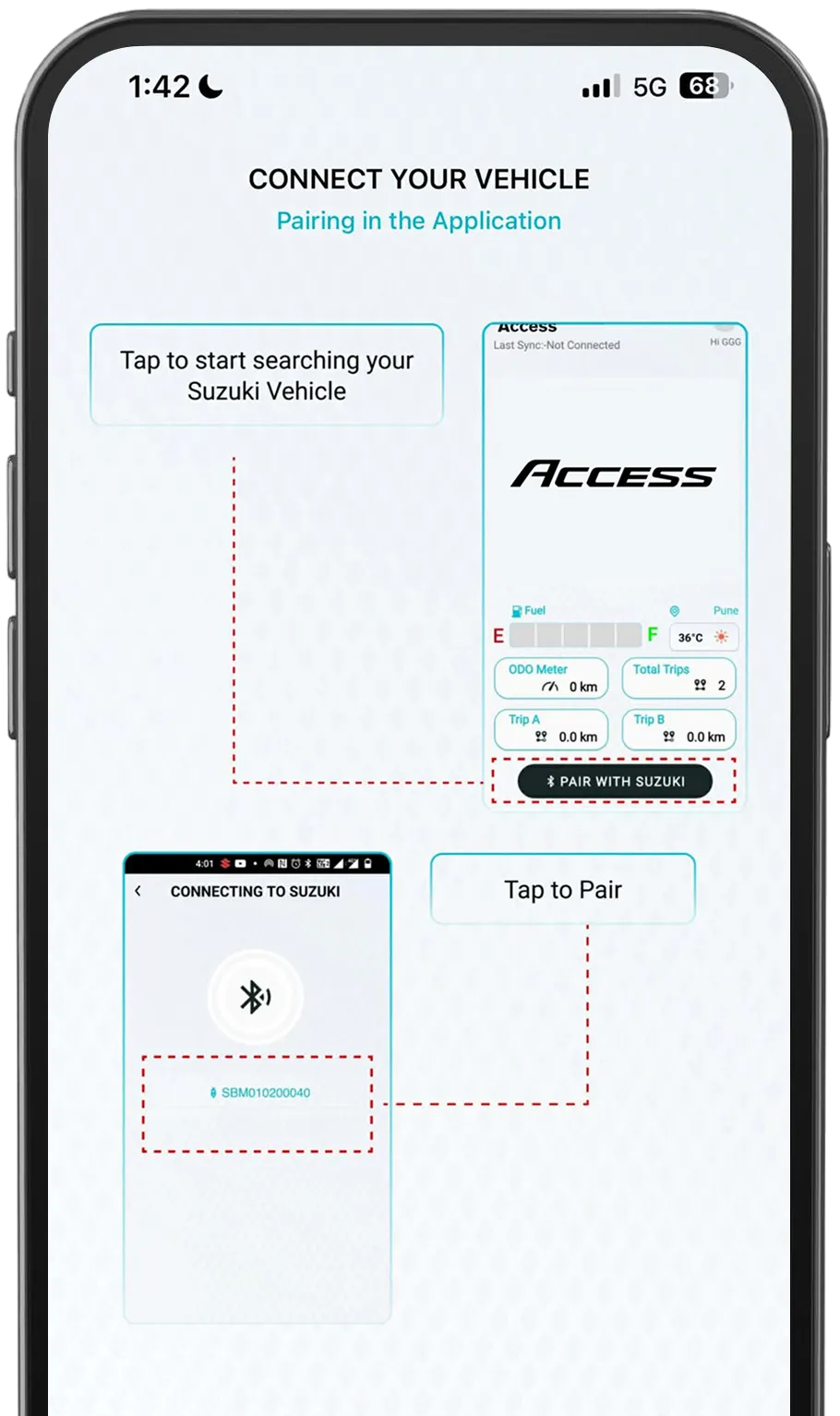
2. Open the Ride Connect Application. In the Welcome Screen or Dash- board, tap on “PAIR with SUZUKI” button located at the bottom of the screen.
3. The page transitions to a list of detected Bluetooth devices. The applica- tion always shows the latest devices with successful connection first. Select the vehicle Bluetooth ID to pair with.
Sample IDs – SAS010000001 and SBM0000001
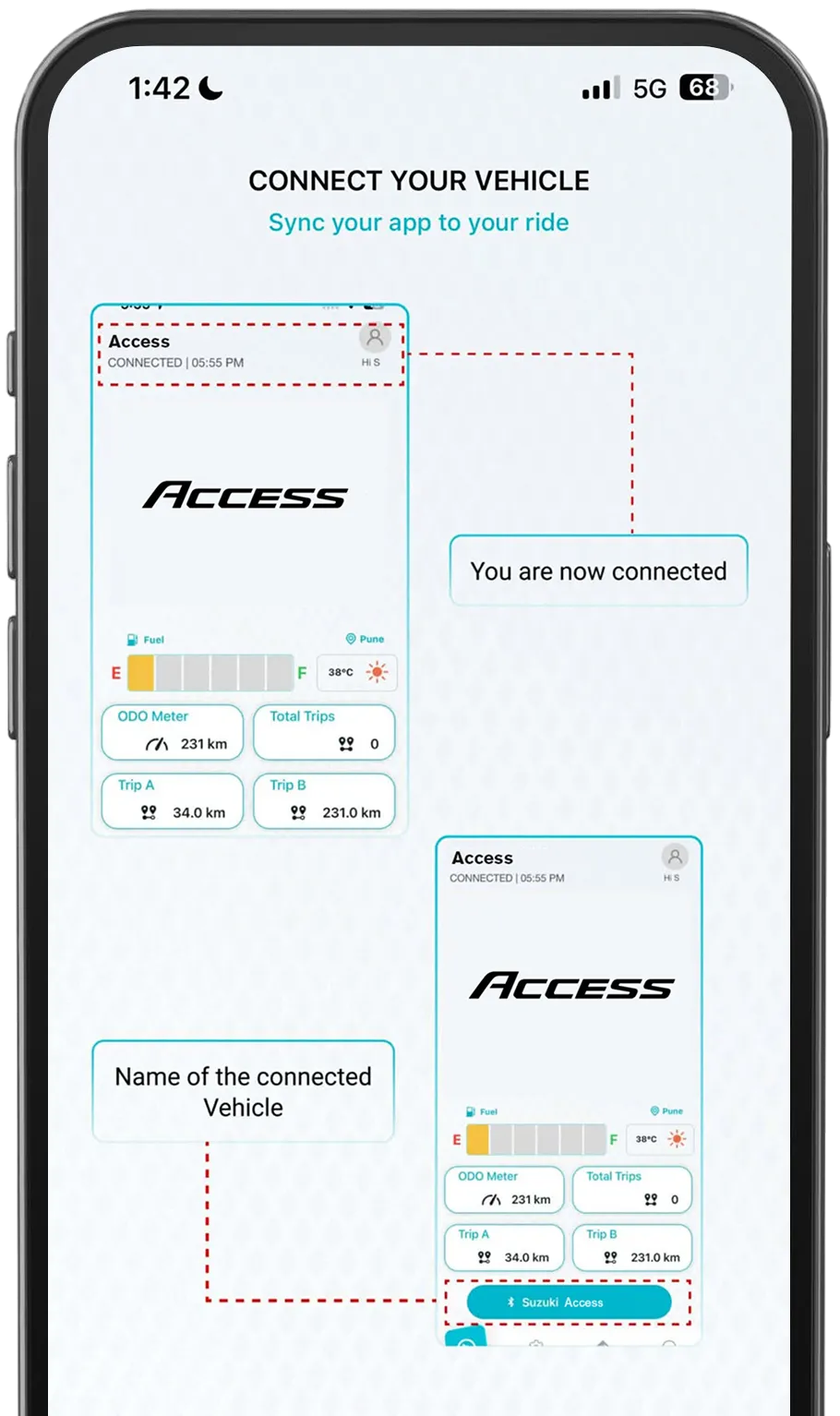
4. The application pairs with the selected Bluetooth ID, and user is redirected back to the Dashboard screen once connection has been established.
5. On the vehicle’s instrument cluster, a welcome message is displayed once pairing is successful.
How can I record my trips?
1. Open Suzuki Ride Connect Application.
2. Go to the “Settings” tab.
3. Enable ’Save All Trips’ option.
How many trips can be saved?
You can save a maximum of 10 Recent Trips and 10 Favourite Trips. When 11th trip is added, oldest trip will get deleted automatically.
What is Total Trips? (Android OS)
Total Trips indicates the total number of Navigation Trips performed.
How can I save a Recent Trip as a Favourite Trip?
1. Go to “Last Sync Data” page.
2. Tap on “Trips” option.
3. The application opens the Trips page with the “Recent” tab initially dis- played. Select the trip in the list to add as favourite and tap on its “Heart” icon.
4. The Favourite icon is highlighted to indicate that it has been added as a Favourite trip.
5. Tap on the Favourites tab. The trip recently selected as favourite should be displayed on the list.
If I save a Recent Trip as a Favourite Trip, will it disappear from the Recent Trip list?
No, the Recent Trip tagged as Favourite will remain on the list of Recent Trips.
If I delete all Recent Trips, will it affect the Favourite Trips?
No, it will not affect the Favourite Trips.
What if the number of Recent Trips exceeds the maximum limit?
Recent Trips can store up to 10 trips. Every new trip will replace the oldest trip automatically.
How can I change the name displayed on the Welcome Screen of the Application?
1. Go to Settings page, and tap on Rider’s profile option located at the top area of the screen.
2. The application transitions to the ’Rider’s Profile’ section. Tap on the edit icon on the page.
3. The page redirects to ’Edit Profile’ section. Edit the profile accordingly and tap on the check button to save the changes.
What is the “ODOmeter” reading?
ODOmeter reading is the Total Distance Travelled by the vehicle.
What is the maximum reading of Trip-A and Trip-B?
Maximum reading of Trip A & Trip B is 9999.9 km.
Why does the Fuel Bar blink on the Welcome Screen?
The blinking bar in Amber Colour indicates Low Fuel Level in the vehicle.
Is the vehicle data on the Welcome Screen i.e. ODOmeter, Trip-A and Trip-B data reset when the Application discon- nects from the vehicle?
No, these data will not be reset. The application will show the last connected vehicle’s information even if the vehicle is not connected.
Will the Application behaviour be affected if the required permissions are not provided during installation of Application?
1. Permissions> Location> Allow All the Time
2. Battery Usage> Allow Background Activity
3. Unused Apps> Turn OFF (Battery> Optimize Battery Use> Don’t Opti- mize)
4. Allow Notification Access in App If unresolved, go to Help> Contact Us page.
What happens if the Application is closed forcefully?
The application will disconnect from the vehicle. It may also lead to a loss of information about the Current Trip.
Which smartphones (Android & iOS?) OS version is com- patible for Suzuki Ride Connect Application.
Note: Certain old smartphones may not be compatible.
Is Internet Connectivity mandatory for Application to function?
Yes, Internet connectivity is mandatory for navigation-related features. However, other features like Call/SMS notifications will function without internet connectivity.
*For Data Enabled Applications, certain VOIP services are restricted due to dependency on the Mobile handset and Android OS.
What should I do if the Navigation information is not get- ting updated regularly on the Instrument cluster screen?
1. Bluetooth ON.
2. Location Permission with Allow All The Time option.
3. Background Activity Permission to the Application.
4. Mobile Data (Internet Services) ON.
5. Notification Access Permission for receiving alerts during Navigation (Call/ SMS/WhatsApp/etc.)
What if I am unable to disconnect the application from the vehicle’s instrument cluster?
1. In the application’s dashboard, tap on the button with a Bluetooth icon and the vehicle’s name located at the bottom of the screen.
2. The page transitions to existing Bluetooth connection. Tap on the ‘TAP TO DISCONNECT’ button.
3. A warning prompt is displayed asking for the user to confirm disconnec- tion. Tap on the “Yes” button to proceed.
4. If unable to do so, user either can restart the application, or turn the vehi- cle’s ignition OFF and turn it back ON again.
Why am I unable to see notifications on the Instrument cluster?
*Notifications can be enabled/disabled as per user’s preference. All Notifica- tions which are enabled will be displayed on the Instrument Cluster.
Why can’t I see SMS notifications or WhatsApp notifica- tions on the instrument cluster even though it is enabled in Notification Settings?
For SMS or WhatsApp notification from a contact which is registered in a non-English language, or with name containing non-supported or especial characters, the name will be displayed as space.
Does the application support notifications for Contacts Saved other than English Language?
Why am I unable to get any calls over my smartphone while it is connected with the vehicle?
How does the Speed Exceeding feature work?
*Suzuki recommends riders to not violate speed limit in respective areas and follow all traffic rules while riding.
*Speed Warning alert will work as long as the application is connected to the Instrument Cluster.
How does the “Auto-Reply SMS” work?
No call notification is displayed over the Instrument Cluster. However, when this feature remains disabled, all incoming SIM call behavior will not change. The user can either select from three pre-defined text messages that comes with the application, or the user can define a custom message.
This feature is available only on the Android version of the app.
Does the Application support WhatsApp Video call notification?
Does the Application support WhatsApp Group message notification?
Why does the Instrument Cluster history sometimes remain when deleting unread SMS/Message notifications from an Android smartphone?
This issue may occur due to the specifications of the default app or various SNS applications. To clear the Instrument Cluster history, you can either delete the history when receiving a new SMS/Message or toggle IG-OFF → IG-ON.
About battery status. On iOS smartphones, the display content on the smartphone screen and the ICC screen are not the same.
How to Remove/Modify the Rider Profile picture?
2. The application transitions to the ’Rider’s Profile’ section. Tap on the edit icon on the page.
3. The page redirects to ’Edit Profile’ section. Tap on the profile picture.
4. An overlay selection box is displayed and user can choose to select picture from phone’s Camera or Gallery, or Remove the existing profile picture.
5. Edit the profile accordingly and tap on the check button to save the changes.
What is the maximum character size for Rider’s Name & Location?
Maximum character limit for Name and Location is 20 characters. Only English characters are allowed.
How to feed the Location information in Profile Page?
* Ensure Location permission is allowed and set to All The Time for smooth application performance.
Can I connect Suzuki Ride Connect Application with other Bluetooth devices?
No, the application will only show nearby available and compatible Suzuki vehicles to pair with.
Does the Application connect automatically after the First connection?
Yes, if the previously paired vehicle is nearby and Bluetooth is ON, the Application automatically connects to the vehicle’s instrument cluster when ignition is turned ON.
Why am I unable to view the vehicle ID on the Application’s Bluetooth Scan list?
The vehicle ID is displayed on the instrument cluster for 120 seconds after the vehicle ignition is turned ON. After the Bluetooth ID display ends, pressing the ‘MODE’ button will return the system to Pairing Mode.
Application doesn’t auto-connect with the vehicle’s instrument cluster when the phone is locked?
From Android 8.0 (Oreo) and above, Android OS restricts any application from running a Bluetooth Scan in the background for more than 30 secs to conserve the phone’s battery. If the phone is locked for more than 1 minute, Suzuki Ride Connect application may not connect automatically. However, if the phone is unlocked and the Application is running, auto-connection with the Instrument Cluster will be initiated.
* Ensure that Background Activity is allowed and Bluetooth is ON.
Will the mobile application run, if the Bluetooth is OFF?
Yes, but features, such as Live Navigation, which require connection with the vehicle will not work. When Bluetooth is turned off, the application will disconnect from the vehicle’s instrument cluster.
Can I use the Navigation feature without connecting Application to the vehicle?
No, you have to connect the application the with vehicle’s Instrument Cluster to use its Navigation feature.
How to use Navigation features?
1. Open Suzuki Ride connect Application
2. Turn ON the vehicle and Establish Bluetooth Connection with the application.
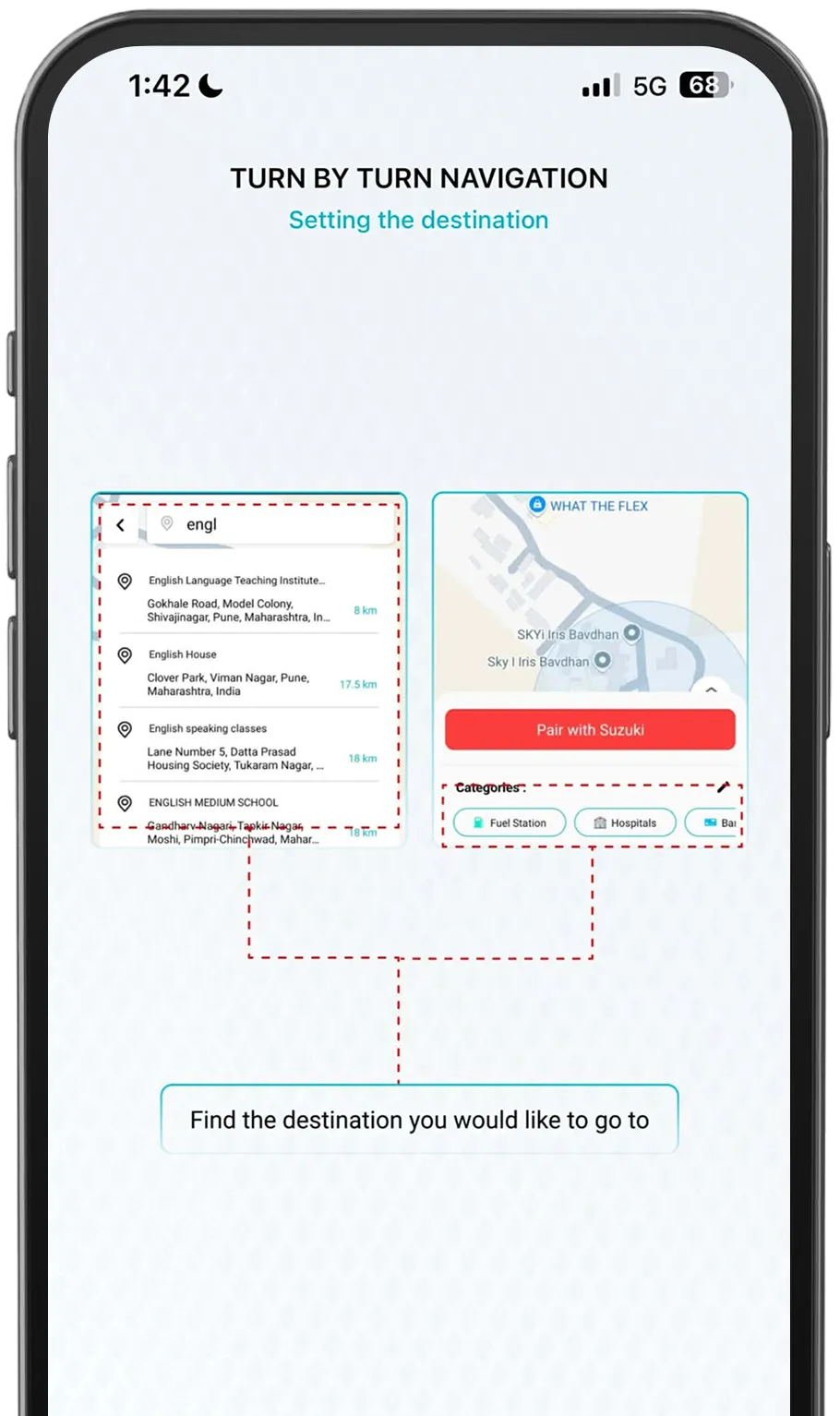
3. Open the Navigation page and search for the destination location or tap anywhere on the Map to set the destination.
4. Tap on the “Start” button to start the navigation.
Is Location sharing possible while riding?
No, the location information cannot be shared using the Application.
Can Trip information be shared with others?
Yes, you can share the trip information with others via social networking services. On the Trip screen, tap on the share icon of the trip you would like to share.
Where can I find Places of Interests options?
1. In the Navigation screen, tap on the Search bar.
2. A box is displayed on the screen with Categories and Recent Searches information.
3. The Categories section displays all pre-defined Places of Interest in the application. User can swipe to view all categories or tap on the edit icon to re-arrange the categories.
4. The pre-defined Places of Interest are:
– Gachaco Station
– Charging Station
– Suzuki Bike Shop
– Fuel Stations
– Hospitals
– Banks & ATM
– Food and Restaurants
– Tire Repair Shops
– Medical Stores
– Parking
– Convenience Stores
* Items may vary depending on the country.
Is “Tap and Hold” on the Map supported for selecting the Destination Location?
Yes, user can select the destination by Tapping and Holding on any location on the map.
* There is no feature to select place names or POIs displayed on the map.
Can “Via Points” be added in the Navigation?
Yes, by tapping on the Add icon in the Navigation search field, user can add up to 9 intermediate Destination Points within the trip.
Will the navigation get Re-routed when Rider takes different route?
Yes, it will automatically re-route when user takes a different route instead of the planned route.
Will there be any notification after reaching a Via-Point?
Yes, the Notification “Arrived at Destination” will be displayed on the application and “Via Point” reached TBT instruction on the vehicle’s Instrument Cluster, for every via point reached.
Are there any Quick Access options for Home and Work location?
Yes, there is a “Home” icon and a “Work” icon available in the Navigation Screen for setting pre-defined addresses for Home and Work locations, and also for easily and quickly setting Navigation to these locations.
Is there a way to precisely assign a Location information as Home and Work Address?
Yes. On the Navigation screen, tap on the Home or Work icon and search for the location address or tap and hold onto any location on the map to set the address as Home or Work address.
Can Rider use Recent Trips for Navigation?
Yes, user can re-use recent trips for navigation. Follow these steps:
1. Go to the Last Sync Data Screen and select Trips option.
2. In the Recent tab, select the recent trip you like to navigate.
3. The page transitions to Trip’s Detailed information. Tap on the “Navigate” icon on the mini map to start the Navigation.
Can Rider quickly search for Nearby Suzuki Service Stations, Hospitals, ATM, etc.?
Yes, these are part of POI (Places of interest) feature. Tap on the search box in the Navigation screen to display the Categories section. User can select any of the displayed categories or swipe through the list to view all predefined POI categories.
On completing my ride, will I get any notification on my phone?
Yes, you will get a pop message informing that “Destination is reached”.
Why application is not displaying the Last Parked Location information?
You have to connect the application to the vehicle’s instrument cluster atleast once.
How to Locate the Last Parked Vehicle?
If the parked vehicle is within 500m, the application gives Pedestrian Route Guidance (Dotted Line) to the last parked location.
If the parked vehicle is more than 500m away, the application gives the Navigable Route to reach the last parked location.
Can I share the last parked location to others?
Yes, you can share your last parked location with others via social networking services.
Why is my WhatsApp notification not being displayed on the vehicle’s instrument cluster?
Older versions of Android (6 and 7) do not allow WhatsApp notifications when Battery Saver mode is Turned ON. The battery saver mode need to be disabled on your smartphone to get the notifications on instrument cluster.
What will happen if the Battery optimization permission is not enabled?
The application will disconnect from the vehicle. It may also lead to a loss of information about the Current Trip.
• App Store is a service mark of Apple Inc.
• Google, Android and Google Play are trademarks or registered trademarks of Google LLC.
• Bluetooth is a registered trademark of Bluetooth SIG, Inc. of the United States.
• If you cannot go to the download page from the URL or QR code, search for “SUZUKI RIDE CONNECT App” in the store.
© Suzuki Motor Corporation, 2025. All right reserved.
If there is an operational problem or a problem that cannot be dealt with in the FAQ, please contact your nearest dealer.
If you do not have a Suzuki dealer nearby, you can use the link below to find a Suzuki contact number in your area. There are chats, email addresses and phone numbers that customers can contact. Please contact there. https://www.globalsuzuki.com/globallinks/
• iOS is the name of the Apple Inc. OS. iOS is a trademark or registered trademark of Cisco or its affiliates in the United States and other countries, and is used under license.
• App Store is a service mark of Apple Inc.
• Google, Android and Google Play are trademarks or registered trademarks of Google LLC.
• Bluetooth is a registered trademark of Bluetooth SIG, Inc. of the United States.
• If you cannot go to the download page from the URL or QR code, search for “SUZUKI RIDE CONNECT App” in the store.
© Suzuki Motor Corporation, 2025. All right reserved.